

Remote Payments in the Epassi App – A New Sales Channel for Service Providers
With the new remote payment feature, your customers can purchase your services remotely through the Epassi app without having to contact you directly, regardless of time or location. This feature is particularly useful for merchants who do not yet have their own online store or whose online store does not yet support Epassi payments.
The remote payment feature is built on the familiar price buttons but makes selling and buying even easier. Through Epassi, you get access to the following tools needed for remote sales in one convenient package:
-
Automatic receipts and order confirmations for customers
-
Automatic messages aftera purchase
-
Order and cancellation terms directly linked to the payment
-
Collection of customer information at the time of payment.
Why should you use remote payments?
- More sales. Your remote payment product will be visible to all one million Epass users in the app’s location search. You can sell a season pass or membership to a customer who has never visited your business, or to a member who only remembers to pay in the evening from the comfort of their couch.
-
More detailed information. Ask the customer to include all the information you need to provide the service—such as an email address, phone number, or membership number—in the purchase details. This way, you can activate the service for your customer without needing to contact them separately.
-
Direct communication with the customer. You can set up a message in Epass that every customer receives after a purchase. For example, explain how to activate the service and how long it’s valid.
-
A smoother purchasing process. The customer always knows what to do after making a purchase. Fewer unnecessary follow-ups, more time saved, and an even smoother service experience for your customers.
Examples of how to use remote payments.
A massage therapist sells personalized session packages or gift cards without an online store: The therapist creates a remote payment button for the session package or gift card in Epass and asks the customer to provide their email address when making the payment. Once the payment is received, the massage therapist receives the information directly in their email and can send the session pass or gift card to the customer’s email immediately, without needing a separate online store or appointment booking.
Ski resort sells season passes remotely: The ski resort creates a remote payment button in Epass for a season pass and asks the customer to provide their Ski Card number at the time of payment. Once payment is complete, the ski resort activates the season pass on the customer’s card—quickly and effortlessly, without waiting in line or making a separate trip.
A yoga studio sells memberships without an online store: No Epassi integration with an online store is needed! The yoga studio creates a remote payment button and instructs members to provide their membership card number at the time of payment. The payment is received, the notification is sent, and the membership is activated—all in one go.
Here’s how to start selling with remote payment.
Log in using either your service provider or location credentials and create a new remote payment product.
When you log in with your service provider ID, you can create a new remote payment product as follows: Locations -> Edit & Price.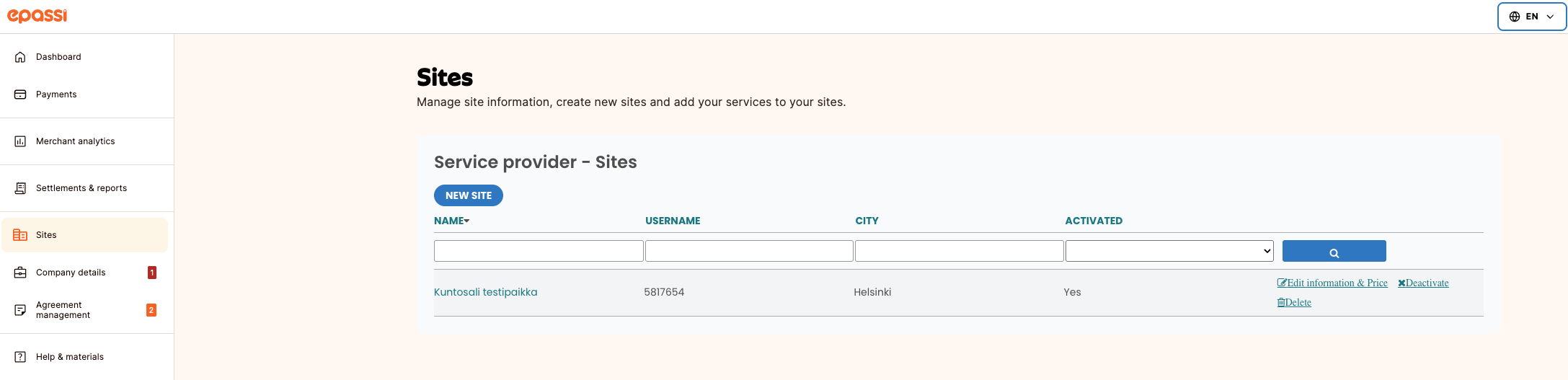
Are you logging in with a location ID?
If you’re logging in with a location serial number, you’ll find the pricing buttons under “My Information.”
Here’s how to add a remote payment button to the location’s details.
1. Click “Add a new Epassi ID”.
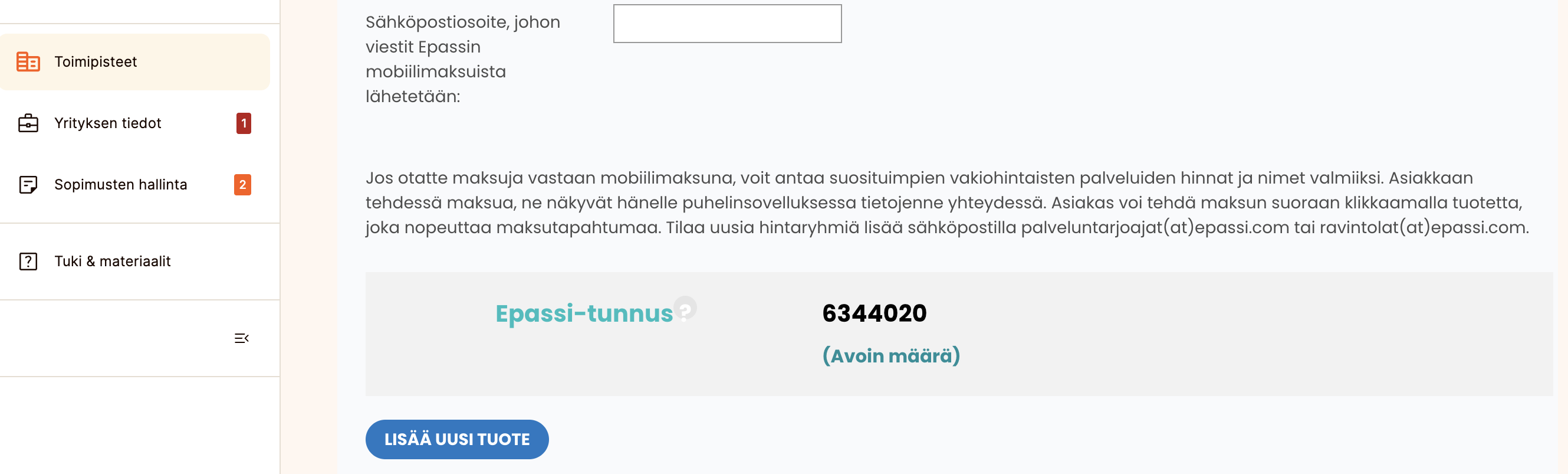
 2. Fill in the Epassi ID details.
-
Select payment method: choose Remote Payment in the app or online (Epassi location search)
-
Price and VAT: Enter the price of the service and select the applicable VAT rate.
-
Category: If you wish, you can select a category for your service from the drop-down menu.
-
Please note that not all categories are listed
-
-
Required customer information: Select the information you want the customer to provide when making a payment.
-
An email address is always required.
-
The “Additional Information” field is convenient because you can name the label yourself—for example, “Membership Number,” “Invoice Number,” or even “Elevator Ticket Number.”
-
3. Specify the details of the service you are selling.
-
Language: Select the language in which you want to describe your service.
-
Service Name: Enter the name of the service here, for example, “10-Session Yoga Pass”
-
Service Description: Describe what the service includes here.
-
Information displayed to the customer after purchase: Enter a message for the customer here, which will be displayed once the purchase is complete. For example, instructions on how to redeem the service.
-
Under “Add service details in another language,” you can also write the description in another language of your choice (Finnish/English/Swedish)
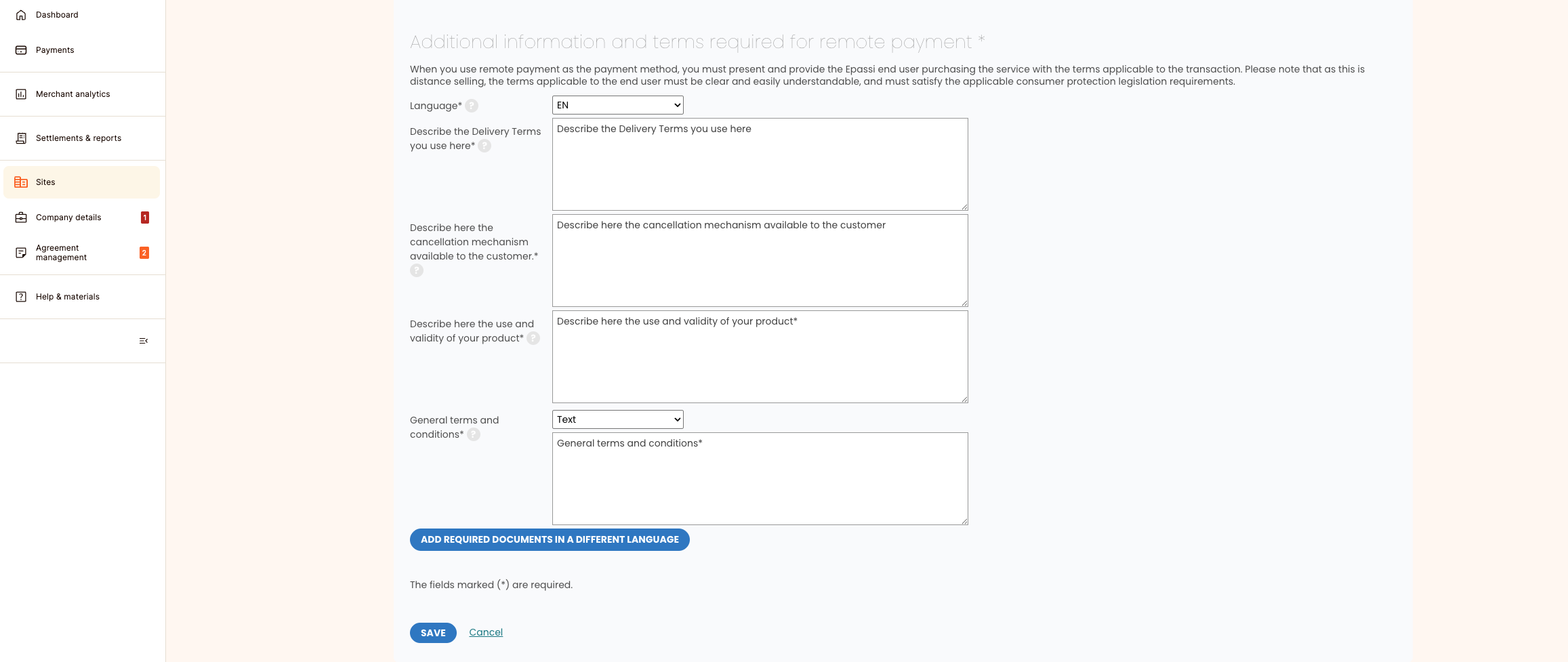
4. Add the terms and information required for remote sales.
-
Once you have completed your service information, you must add the delivery, cancellation, validity, and terms of use required for remote payments, at a minimum, in accordance with our instructions.
- You can find the instructions by hovering your mouse over the question mark icon.
- If your company already has these terms and conditions available, for example on your website, you can enter a link in the text field that directs users directly to the terms and conditions on your website.
- Under the “Add required documents in other languages” section, you can also enter the terms and conditions in Swedish and/or English.
- Once you’ve filled in all the required fields, click “Save.”
The remote payment product will now be visible to end users in the Epassi app.
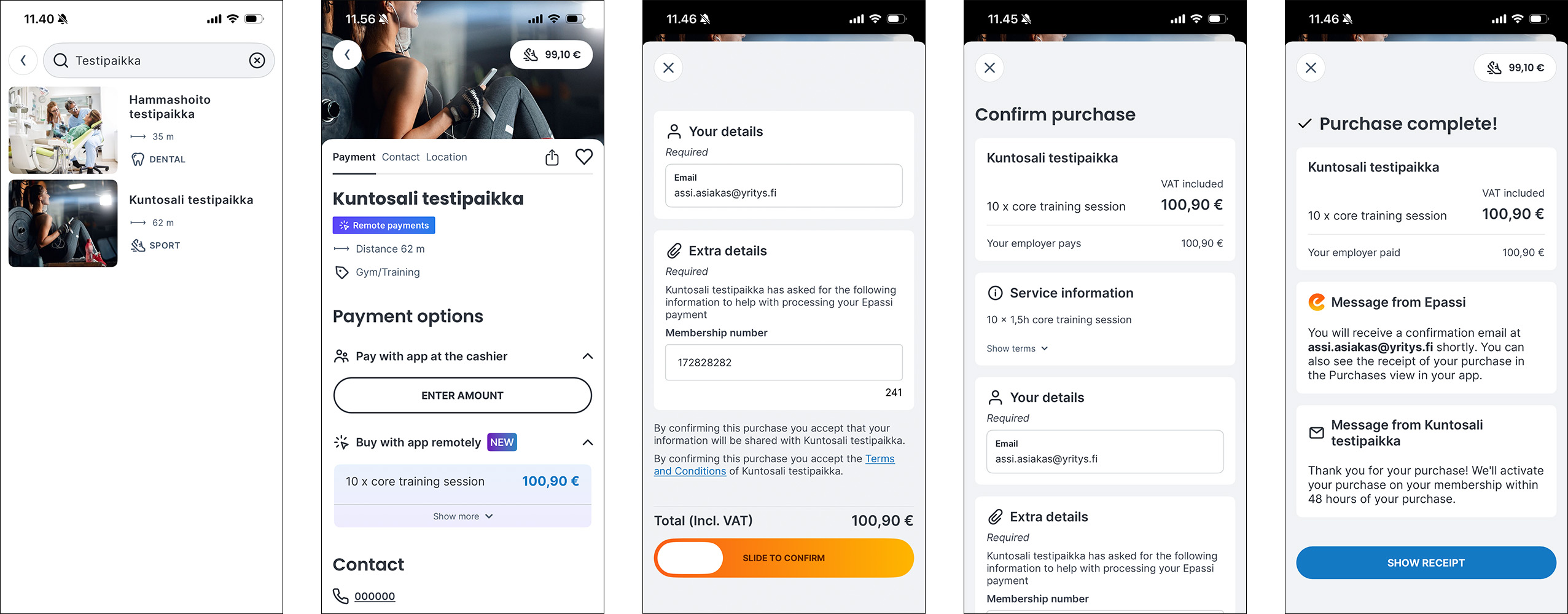
Here’s how your customers make remote payments in the Epassi app.
If your customers ask how they can make remote payments with Epassi, please provide them with the instructions below.
-
Click on a location
-
Select the service you want to purchase
-
Enter the required information that the merchant asks for when you make a purchase
-
Confirm the payment
- You’ll receive a confirmation of your successful purchase in the Epassi app. You’ll also receive a receipt in your email shortly.
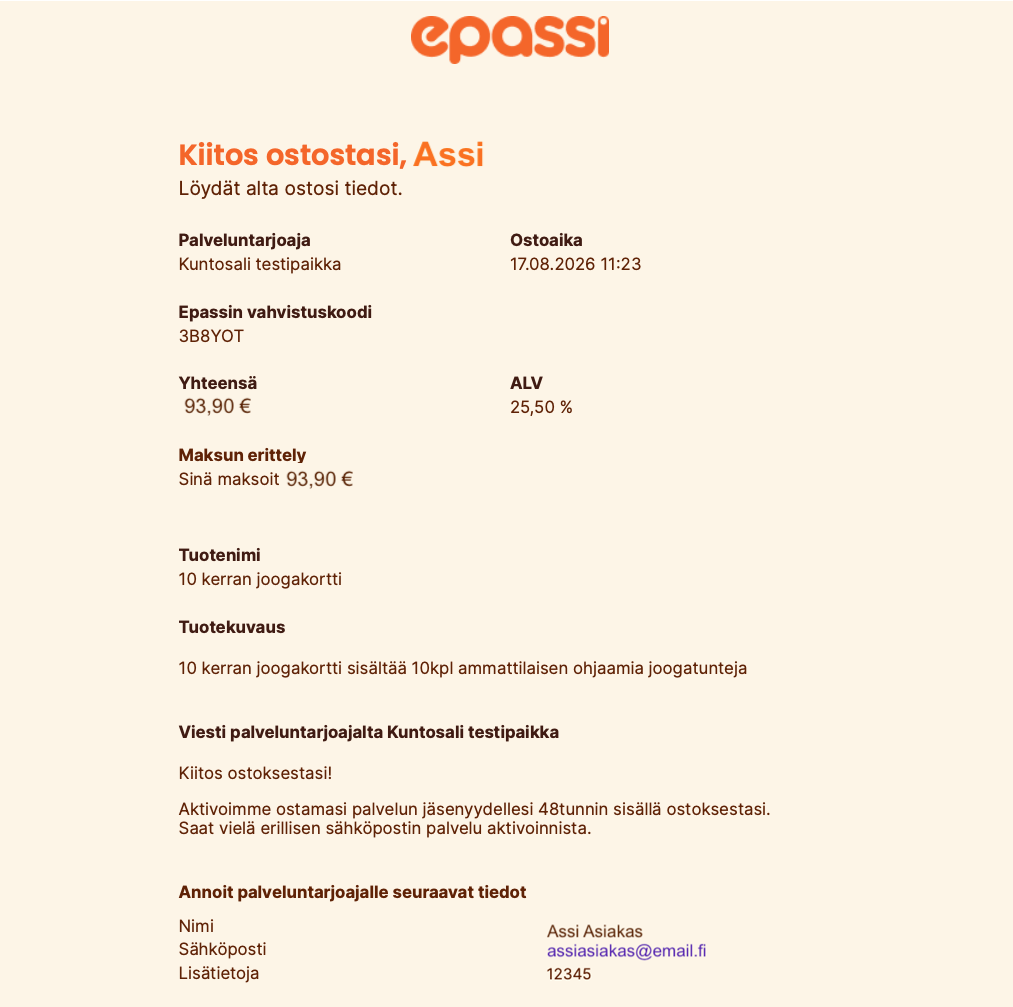
Customer’s email receipt.
Your customer will receive a receipt via email for the successful payment, which includes the following information, among other details:
- Purchase amount
- Service name and description
- A message written by the service provider in the field: Information to be displayed to the customer after the purchase
- The contact information you provided
- Terms and conditions for purchasing the service, as defined by the service provider.
- Customer name
- Email address
- Phone number (if you have chosen to include this contact information in the remote payment product details)
- Additional information—that is, any additional details the merchant has requested about the customer, such as a membership number
- Price
- VAT rate
- VAT amount
- Service category
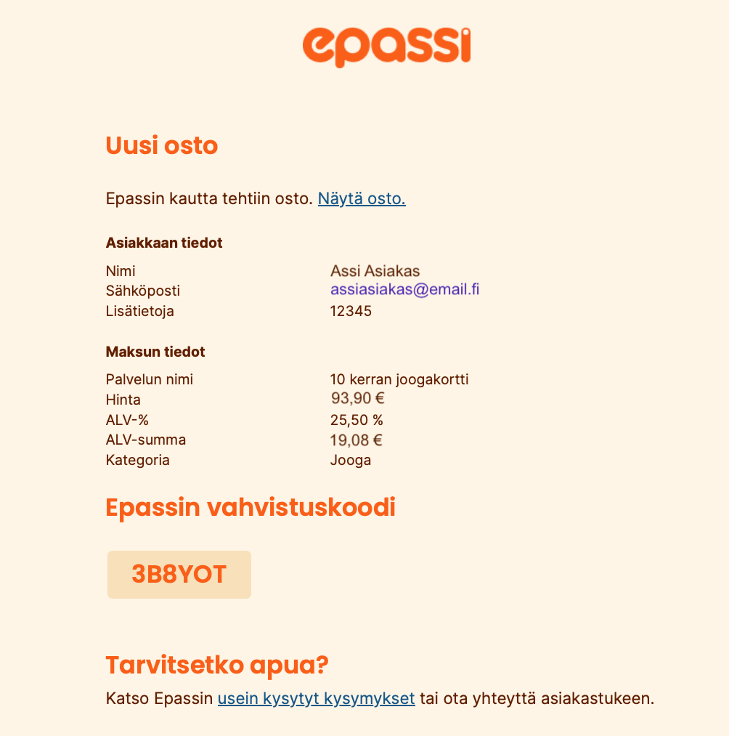
Merchant’s order confirmation.
As a merchant, you will receive an order confirmation via email after a successful remote payment. The order confirmation includes the following information:
Customer information:
-
Customer’s name
- Email address
- Phone number (if you have chosen to provide this information)
- Additional information you have specified regarding the remote payment product, such as a membership number.
Payment details:
-
Service Name
- Price
- VAT rate
- VAT Amount
- Service category.
Important Information About Email Notifications for Remote Payments.
When using the remote payment button, we recommend that you enable email notifications for Epassi remote payments made. If email notifications are not enabled, the contact information provided by the customer will not be forwarded to you. Please note that if you select email notifications, you will receive them for all Epassi payments—including those made using payment methods other than remote payment.
Enable email notifications in the Branch Information section.
